What's new: October 11 - October 14, 2026
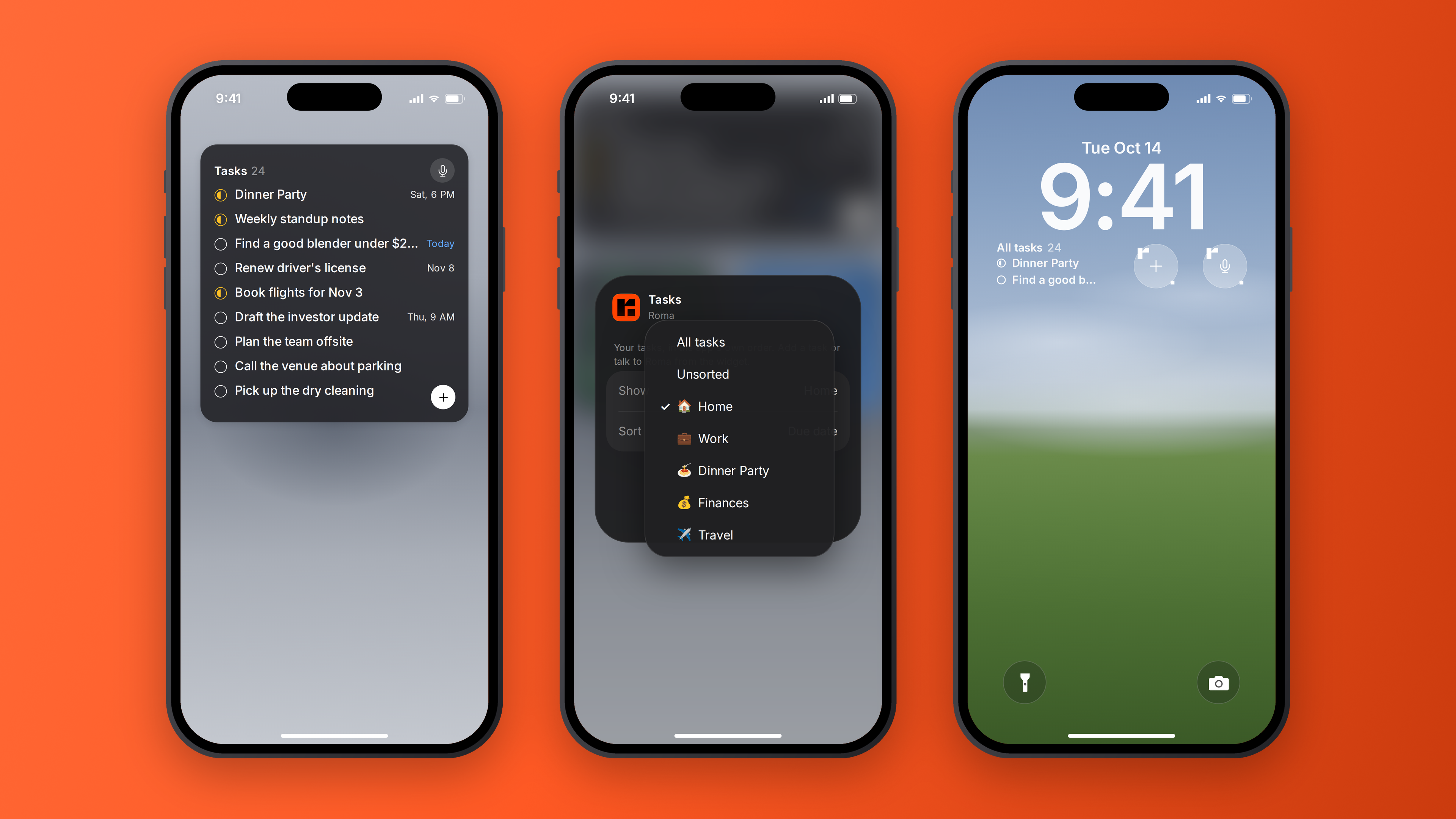
We’ve added widgets to Koma on iOS. See what’s next right on your Home Screen or Lock Screen, without opening the app.
Your tasks, on your Home Screen
Your next task shouldn’t take opening an app to find. Koma widgets put what’s due and what’s in progress on your Home Screen, with shortcuts to capture a thought before it’s gone.
Choose from three sizes, show all your tasks or a single project, and set the sort order to suit you. Tap a task to open it and pick up the Operator’s work there. On your Lock Screen, keep your next two tasks below the clock or a task count above it, including tasks from a specific project or your unsorted tasks.
When you remember something you need to do, tap the plus or microphone on a medium or large Home Screen widget. New task opens with the keyboard ready; Talk to Koma opens already listening. Those capture shortcuts are also available on your Lock Screen, in Control Center, or on your Action button.
All updates
See your tasks on your Home Screen with widgets in three sizes.
Choose all tasks, unsorted tasks, or a project for your Home Screen widget, and pick the sort order.
Add a task or talk to Koma using the plus and microphone buttons on medium and large Home Screen widgets.
See your next two tasks in a Lock Screen widget below the clock.
Show a task-count line above the Lock Screen clock.
Filter Lock Screen task widgets to all tasks, unsorted tasks, or a specific project.
Add plus and microphone shortcuts to your Lock Screen to create a task or talk to Koma.
Add New task and Talk to Koma controls to Control Center, the Lock Screen’s bottom controls, or the Action button.
New task controls open with the keyboard ready; Talk to Koma controls open with the microphone live.
Follow a meeting recording or voice capture from the Dynamic Island and Lock Screen, with recording status, elapsed time, and a Stop button.
Meeting recording activities can show processing status and “Summary ready” after the app receives the update.
Recording cards on the Lock Screen follow your selected app-icon colors.
Pressing Enter after creating a task on the web puts the cursor in its body, ready for the details.